



January 28, 2026
How to Use BrandCrowd’s Logo Maker on macOS to Build Brand Assets
For most Mac users, branding starts with a logo but quickly expands into something bigger. Once the logo exists, questions follow fast: What colors should I reuse? Which font stays consistent? How do I make social graphics or print-ready files without redesigning everything each time?
BrandCrowd approaches this process by centering everything around the logo. Its logo maker and AI logo generator act as the entry point, while templates and brand-ready tools help extend that initial design into usable assets. This guide explains how macOS users can move from logo creation to a small, cohesive brand system using BrandCrowd, all inside the browser.
Step 1: Generate a logo that can scale beyond the first use
Open BrandCrowd in Safari or Chrome and start by entering your brand or business name.

The logo generator immediately presents a wide range of complete logo designs rather than unfinished concepts. These are built with spacing, hierarchy, and typography already in place.

At this stage, avoid judging logos based purely on color or icon style. Instead, focus on whether the layout feels adaptable. A strong starting logo should still work when reduced to a social profile image or stretched across a website header.
If you want speed, BrandCrowd’s AI logo generator is designed to get you there quickly. It pulls from a large pool of designer-created layouts, giving you usable structures instead of blank canvases.
Step 2: Choose colors and fonts with long-term use in mind
Once you select a logo direction, BrandCrowd moves you into customization. Here, colors and typography become the backbone of your brand assets.
BrandCrowd applies color and font changes consistently across the logo, which helps prevent uneven spacing or mismatched text styles. This is especially useful for Mac users who want clean results without adjusting every element manually.
These decisions will carry through every asset you create later, so it’s worth slowing down here.
Step 3: Refine the logo without losing balance
After locking in the basics, BrandCrowd lets you adjust layout details such as text alignment, icon placement, and orientation. The editor keeps proportions intact, which makes experimentation feel safe.

This is where BrandCrowd’s template-first approach helps. Because the design already follows a visual structure, small changes rarely break the logo. Mac users who don’t work in professional design tools benefit from this guardrail-style editing.
The goal isn’t to redesign the logo, it’s to refine it until it feels stable across multiple uses.
Step 4: Turn the logo into reusable brand assets
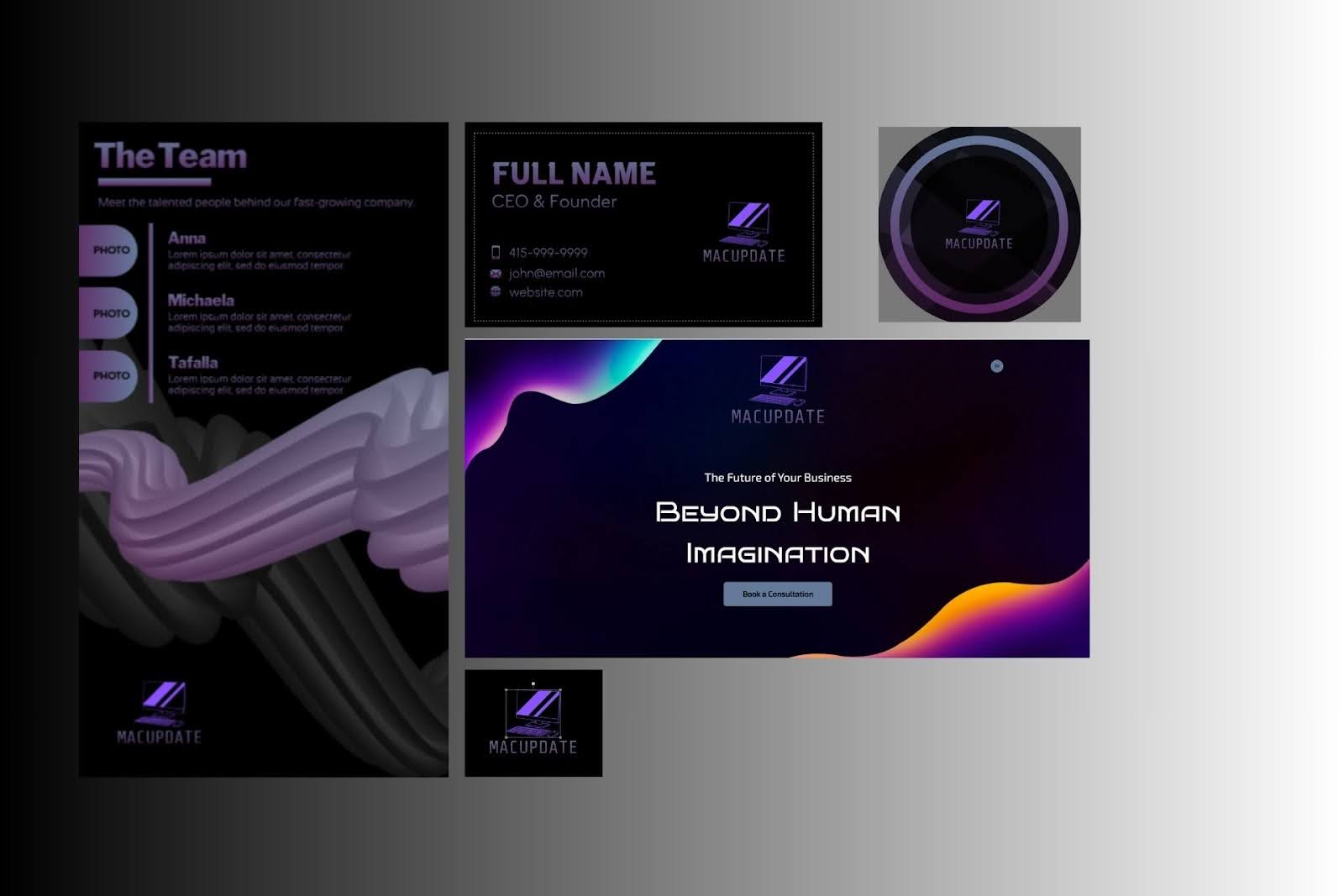
Once your logo is finalized, BrandCrowd shifts from logo maker to brand asset builder. Using the same colors and fonts, you can generate additional materials without starting from scratch.

The assets include:
- Social media graphics and profile images
- Business cards and basic marketing materials
- Headers, banners, and promotional designs
Each asset inherits the visual rules of your logo, which keeps everything consistent even if you return weeks later to create something new.
This step is where many users save the most time, since consistency is handled automatically rather than manually recreated.
Step 5: Prepare assets for digital and print use
BrandCrowd supports multiple download formats, which matters once your brand moves beyond the screen. You can export files suitable for web, social, and print workflows.
The formats include:
- PNG and JPG for websites and social platforms
- SVG for scalable web graphics
- PDF and EPS for print and production
For Mac users, this flexibility means you can hand off files to developers, printers, or collaborators without rebuilding assets elsewhere.
Step 6: Revisit and update your brand as it grows
Brands evolve, and BrandCrowd allows you to return to saved designs and adjust them without restarting the process. Because your logo, colors, and layouts live in one place, updates remain visually aligned.
This centralized approach reduces the risk of inconsistency, which is a common problem when logos and assets are scattered across different tools or versions.
Pricing and free access
BrandCrowd allows users to experiment with logo creation at no cost. You can browse designs, customize layouts, and save ideas without committing to a purchase. Some tools are available in a limited free form, with BrandCrowd attribution included.

Upgrading unlocks practical features such as high-resolution downloads, vector file formats, and continued access to branding tools. Paid plans start at $5 per month when billed annually, making it a manageable option for solo creators and small teams who want to build their brand over time.
Who this workflow works best for
BrandCrowd is a good match for Mac users who want a straightforward way to develop a brand without getting lost in technical design work. It’s accessible for newcomers who benefit from built-in structure, while still efficient enough for experienced users who value speed and consistency.
If you’re aiming to create a cohesive visual identity, this workflow scales more naturally over time.
For anyone looking for a best AI logo generator on macOS that flows smoothly into broader brand assets, BrandCrowd provides a connected and practical solution.
Final thoughts
Building brand assets on macOS becomes simpler when everything starts from a strong logo foundation. BrandCrowd focuses on helping users move from logo creation to consistent, reusable designs without unnecessary complexity.
For Mac users looking for a logo generator that extends naturally into broader branding needs, BrandCrowd offers a workflow that balances speed, control, and real-world usability.

Digital Content Specialist
Nick deCourville is a Digital Content Specialist dedicated to the Apple ecosystem. He believes that fixing something can be just as straightforward as breaking it, which fuels his exploration of iPhone and iOS settings. As the owner of an iPhone 15 Pro, Apple Watch SE, and MacBook Pro, Nick is constantly honing his expertise in Apple’s products. With a Master’s degree in English Literature and Composition from The University of Akron, he has a strong foundation in writing and communication.