




08 May 2026
The Best Thunderbolt 5 Docks for Mac in 2026: Power for Every Device
These days, it’s easier than ever to transform a MacBook into a full desktop setup, and a good dock is the ultimate companion for completing the task. Using just a single cable, a solid Thunderbolt dock expands your MacBook’s limited ports into a full workstation. It helps you connect displays, additional SSDs, network peripherals, and more–all through one device.
With Apple continuing forward with Apple Silicon, those looking for higher performance are turning to Thunderbolt 5 as it sets a new standard for speed, bandwidth, and flexibility. Don’t get us wrong, Thunderbolt 3 and Thunderbolt 4 docks are still useful in 2026–but the upgrades Thunderbolt 5 provides can be highly beneficial for those who take on large file transfers; demanding creative workloads; or anyone working with high-resolution displays.
Thunderbolt 5 vs USB4 vs USB-C: What’s the Difference?
On a quick look, USB-C and Thunderbolt may appear identical, but it’s really about what’s behind the scenes. USB-C is more of a connector type, whereas USB4 and Thunderbolt are referencing the type of tech that is powering said connection.
As a quick refresher:
- USB-C 5Gbps or 10 Gbps
- Thunderbolt 3 and Thunderbolt 4: 40 Gbps’
- Thunderbolt 5: 80Gbps / 120 Gbps
- USB4: 20Gbps or 40 Gbps
Thunderbolt 5 is capable of hitting 80Gbps of bandwidth, though it can scale higher for tasks that are display-heavy. It’s a noticeable jump from the 40Gbps limit of Thunderbolt 4, which makes it better suited for high-speed storage devices, multi-display setups, and external GPUs.
For those on Mac, it means better performance: whether it’s transferring large files, working with 4K or 8K video, or even running multiple accessories simultaneously. Remember that your dock is going to need an “upstream” connection that goes to the MacBook, and it’ll need “downstream” ports for connecting your devices and displays.
External Displays and Your MacBook
If your MacBook is your primary machine, adding another display can really benefit your productivity. While you may be getting stuff done on a 13- or 15-inch screen, adding an additional monitor that’s at least 27-inches is most certainly noticeable when it comes to your workspace. With a good dock, you can even connect multiple displays depending on your MacBook’s specs.
With Thunderbolt, HDMI, or DisplayPort, you can use Extended Mode to run two or more displays. This is where your desktop extends beyond your laptop screen and works and extends across the extended displays. By default, Macs connected via standard USB-C have a limitation of one external display when using Extended Mode, while additional screens will only mirror the main display. There are third-party solutions to this issue, such as DisplayLink, which is software that supports up to four additional displays, depending on your dock, including base-model Macs.
Do You Actually Need a Dock?
Depending on how long you’ve owned a Mac, you’re likely already familiar with their limited connectivity. Take the M4 MacBook Air for example, which has two USB-C ports and a 3.5mm audio port. Even on higher-end Macs, you’re only getting a handful of Thunderbolt ports, an HDMI port, and a headphone jack. They’re beneficial, of course, but the port limitations are only going to take you so far.
A Thunderbolt dock can be a solution for splitting a single port into many, allowing you to connect a variety of devices without constantly swapping cables. This includes items like wired internet, SSDs, and external monitors, but don’t forget about all the USB accessories in your life. A dock is good for creating a centralized setup, one that just requires a single plug to your machine to have everything ready to rock.
Dock vs Hub: What’s the Difference?
While many accessories can come with many ports, not all of them are worth one of your Mac connections. Just like how USB-C and Thunderbolt can look similar but serve different purposes, this also holds true for docks and hubs.
A Thunderbolt or USB-C hub usually centers around portability and smaller designs. They’ll expand the capabilities of your MacBook, but they may not provide that much power or a suitable number of ports. Docks, on the other hand, are suited more for a setup that’s permanent. They’ll typically have a wider assortment of ports, higher power delivery, and support for both high-speed devices and multiple displays.
If you just need something for when you’re on the go, a hub will likely suit your needs. If you’re aiming to transform your MacBook into a full-blown workstation, a dock may be the smarter call.
Thunderbolt and USB-C Speeds
|
USB-C |
Thunderbolt 3 |
Thunderbolt 4 |
Thunderbolt 5 |
|
5Gbps (USB 3.2 Gen1) |
40Gbps |
40Gbps |
80Gbps/120Gbps |
|
10Gbps (USB 3.2 Gen 2) |
PCIe 16Gbps |
PCIe 32Gbps |
PCIe 64Gbps |
|
40Gbps (USB4) |
Daisy Chain x 5 |
Daisy Chain x6 |
|
|
2x TB3 ports |
4 TB4 ports |
4x TB5 Ports |
USB PD: Power Delivery with a MacBook
It’s worth knowing that a good dock worth its salt is able to charge your MacBook while it’s connected. This means looking for the right Power Deliver (PD) rating that meets the needs of your device. There’s no over-powering a MacBook, so larger numbers are fine. If you have something like the high-end Pro, you’ll want 140W (PD 3.1), whereas a MacBook Pro likes 85W or more (PD 3.0) and a 70W or more will provide fast charging to a MacBook Air.
The Best Docks for Mac in 2026
With that being said, we’re taking a look at some of the best USB-C and Thunderbolt docks available in 2026. We’re taking a look at what they have to offer consumers, and we’re taking a quick look at their functionality and specs.
The nice thing about going with Thunderbolt is that it has backwards compatibility and can be good for devices beyond your current setup, making it something of an investment. While TB4 and TB3 can be fine for most setups, we’re looking at plenty of Thunderbolt 5 docks since they often offer the most features.
#1 iVANKY FusionDock Ultra
|
Pros:
|
Cons:
|
Price When Reviewed: $749.99
Type: Thunderbolt 5 / USB-C
Ports: 26
Power: Up to 140W Power Delivery (PD 3.1)
External Displays: Up to four external displays (up to 6K, varies by Mac model and processor, will not bypass built-in display limitations)
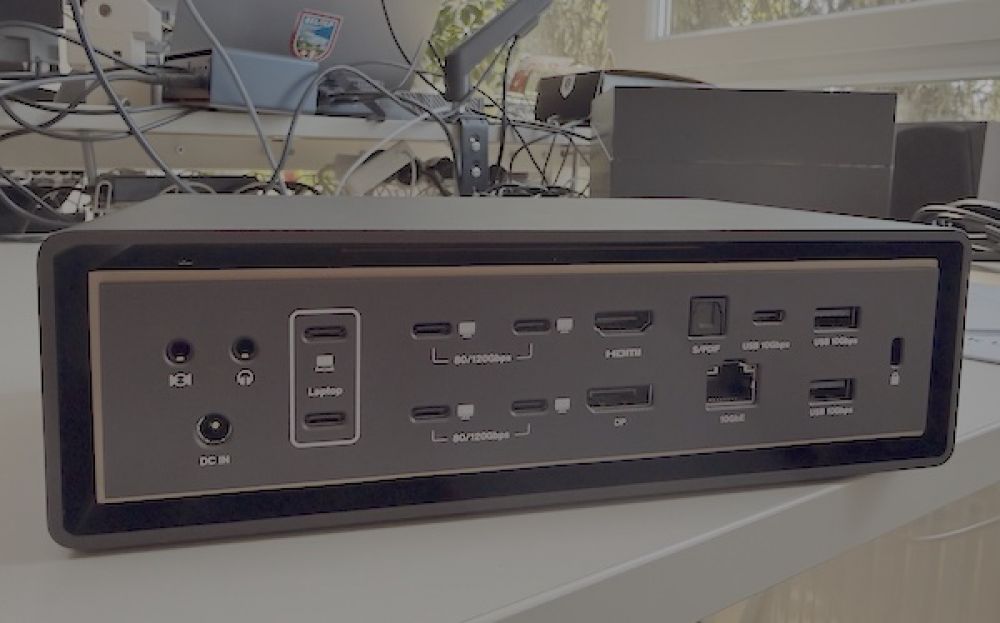
For those on an Apple Silicon Mac setup who truly want no compromises, the FusionDock Ultra from iVANKY takes our top spot. Built around Thunderbolt 5, it features a design that aims to replace multiple adapters and hubs with one powerful connection.
The Fusion Dock Ultra features six Thunderbolt 5 ports, including two upstream connections with up to 140W power delivery alongside four downstream ports capable of up to 80 Gbps (which can be pushed to 120Gbps for display-heavy workloads). This means running multiple displays, external drives, and peripherals all at once while still maintaining smooth performance.
What sets the FusionDock Ultra apart is its 26 different pro-grade connectivity options. With eight USB-C ports, four USB-A ports, and 10GbE networking options, it offers plenty of flexibility for power users and creatives alike. For display options, there’s DisplayPort 2.1 up to 8K at 60Hz and HDMI output, and its dual-chip architecture can drive quad 6K displays with a Max M-chip MacBook Pro and other compatible Macs.
Giving it a test drive on our MacBook Pro, setting up the device was incredibly straightforward: just plug it in through one of your USB-C ports, connect to it a line of power through DC IN, and you’re ready to go. Running two different 1080p displays was effortless for the dock, and we couldn’t find enough USB-C accessories around the office to even start putting this thing under pressure. This is likely thanks to the Fusion Dock Ultra’s twin-fan cooling system, which stays cool and quiet even when being put to the test. Even with two external displays humming along, the dock performed uninterrupted as it reliably kept up with our workloads.
To really round out the experience, there’s additional features like UHS-II SD/TF card slots and multiple audio ports (including optical). Available for $649.99, this one not only stands out for its features, but for being a solid solution for creatives, businesses, or any Mac users wanting the end game to their setup.
#2 OWC Thunderbolt 5 Dock (11-Port)
(Source: OWC)
|
Pros:
|
Cons:
|
Price When Reviewed: $329.99
Type: Thunderbolt 5
Ports: 11
Power: Up to 140W
External Displays: Up to three 8K displays (varies by Mac model)
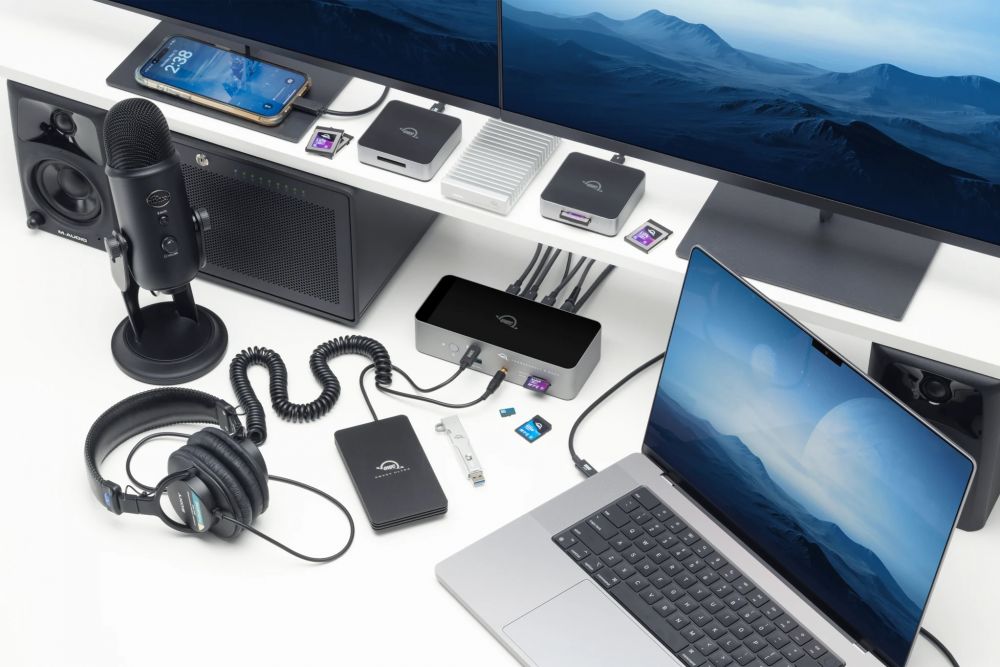
OWC has held a stellar reputation within the world of Mac accessories, and its 11-port Thunderbolt 5 Dock continues pushing this trend forward. Taking a more streamlined approach, the goal isn’t to overwhelm users with a wealth of options, but it does focus on delivering the essentials with a good amount of consistency and reliability.
The layout for the 11 ports includes a good mix of Thunderbolt 5, USB-C, ethernet, and audio connections. It’s a good selection without feeling superfluous. OWC’s dock can be good for Mac users looking to expand their desktop but don’t want to go overboard or don’t need enterprise-level networking.
During tests, the dock performed as expected. Strong connections, snappy data transfers, and little to no noticeable when running multiple displays. With 140W power delivery, you’ll have no problem powering your MacBook Pro, though some may prefer a dock with more options.
It’s a good middle ground option, but it’s also going to be less flashy than a premium dock. May be practical for everyday setups.
#3 Razer Thunderbolt 5 Dock Chroma
(Source: Razer)
|
Pros:
|
Cons:
|
Price when reviewed: $399.99
Ports: 11 (including M.2 slot)
Type: Thunderbolt 5
Power: Up to 140W
External Displays: Triple 4K displays or a secondary 8K display(may vary by Mac)
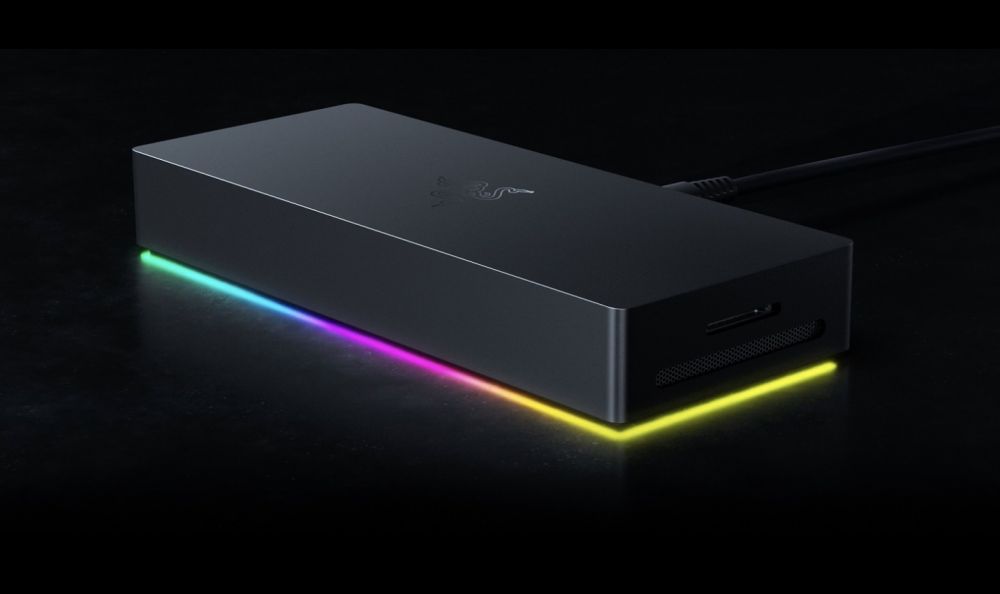
The Razer Thunderbolt 5 Dock Chroma brings a bit of personality to a category that typically reserves itself for business. With a design that includes Razer’s signature aesthetic, the dock combines strong performance with customizable RGB lighting, making it a unique choice for users who want something eye-catching on their desk.
While it’s got the looks, it can deliver performance, as well. With a nice selection of ports, including Thunderbolt 5, Ethernet, and display outputs, it can handle a variety of peripherals and accessories without issue. There’s also compatibility for Thunderbolt 4 and USB 4, and the dock will keep connections stable even across displays and drives. The addition of a M.2 SSD slot is also a nice bonus.
Though there’s included software for the RGB lighting, macOS users may not be able to fully take advantage of it. However, the lighting is more of a bonus, if anything. This dock is going to be a good choice for those that like a little fun with their accessories, though the party does come with a premium.
#4 Satechi CubeDock Thunderbolt 5 Dock with SSD Enclosure
|
Pros:
|
Cons:
|
Price when reviewed: $399.99
Ports: 13
Type: Thunderbolt 5
Power: Up to 140W
External Displays: Up to triple displays (depending on Mac model non M5 Macs likely dual displays)
With a focus on simplicity, the Satechi CubeBox Thunderbolt 5 Dock offers a compact solution for users that can easily fit within a modern desk setup. It has a footprint about the same as a Mac Mini, which may be appealing for users who have limited space. The special thing about this one is that is it includes an SSD enclosure that lets you add up to 8TV of M.2 NVMe storage with speeds up to 6,000MBps.
Though it may be small in size, it can still pack a powerful punch, as it has a useful combination of Thunderbolt, USB-C, USB-A, and display outputs. Larger docs may offer users more options, but this one is good for covering the basics. Those who want a second monitor or a place to connect a couple of accessories will appreciate this one.
This dock is going to be good for an everyday workload without issues. File transfers went fast and smoothly, and there were no issues while running a dual display setup. Those running a higher-end machine may want to peruse the stats a bit more closely, but those running something like a MacBook Air likely won’t run into any problems. It’s going to be a good choice for someone looking for simplicity.
#5 Wavlink Thunderbolt 5 High Performance Docking Station
(Source: Wavlink)
|
Pros:
|
Cons:
|
Price when reviewed: $299.99
Ports: 12
Type: Thunderbolt 5
Power: Up to 140W
External Displays: Dual Displays, up 6K depending on Mac
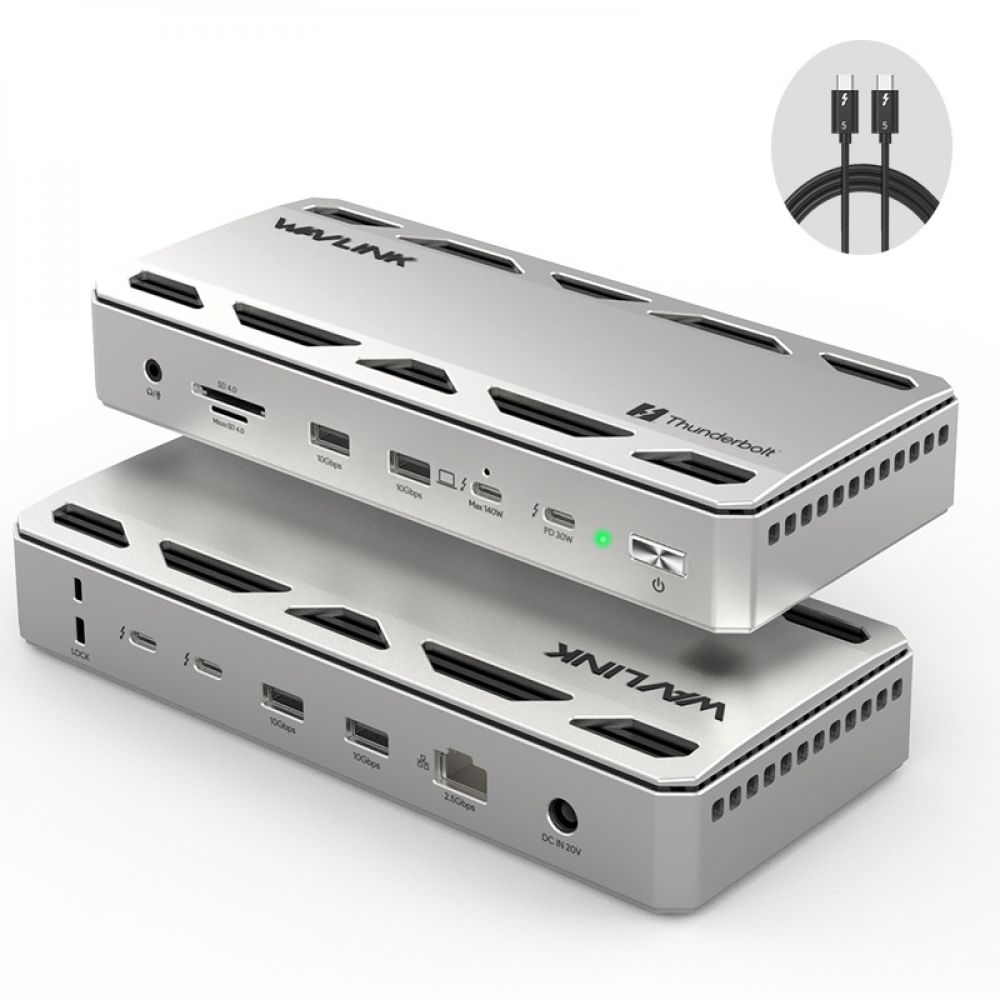
While the Wavlink Thunderbolt 5 High Performance Docking Station may not have the same looks as premium brands, it still delivers a solid amount of performance. It’s got a good amount of versatility, as it can offer up to 140W PD3.1 through Thunderbolt 5, it’s got some additional features under the hood that can be worth checking out.
Along with Ethernet and display options, you naturally get access to USB-C and USB-A, as well. It’s going to have around the same assortment of ports that you would expect from other models on this list, making it a rather strong contender. However, it’s worth noting that it may not match the build quality of other items on this list, and it could provide some better thermal management.
Setting this one up with a MacBook Pro wasn’t much of an issue, and running dual displays was pretty effortless. While some may prefer to go with something that offers triple monitor support, Wavlink’s offerings can be good for those that know exactly what they want with a dual display setup.
The Final Word: What’s the Right Your Mac Setup?
At the end of the day, it’s really going to depend on what you want out of your Mac. Each dock is going to be good for Thunderbolt 5 connectivity, but the real difference is going to be in how many displays you want to run and the exact number of connections you may need. Those running something like a MacBook Air who are comfortable with a dual display may simply want to look at the best priced model from the list. However, someone rocking an M5 MacBook Pro and wanting to run triple 8K displays may want to look at the higher-end options.
Though casual users may find it unwieldy, power users should consider the iVANKY Fusion Dock Ultra, as its capabilities of running quad displays with the proper Mac setup is certainly hard to beat, and that’s not even including the Ethernet support. However, Thunderbolt 5 is certainly the way to go if you’re looking for the fastest speeds, but consider what exactly you plan on using your dock for before making a decision.

Digital Content Specialist
Nick deCourville is a Digital Content Specialist dedicated to the Apple ecosystem. He believes that fixing something can be just as straightforward as breaking it, which fuels his exploration of iPhone and iOS settings. As the owner of an iPhone 15 Pro, Apple Watch SE, and MacBook Pro, Nick is constantly honing his expertise in Apple’s products. With a Master’s degree in English Literature and Composition from The University of Akron, he has a strong foundation in writing and communication.