


January 13, 2026
Design.com vs DesignEvo: Which Logo Maker Works Best on macOS?
Mac users expect logo tools that behave predictably, run smoothly in Safari and Chrome, and produce designs that scale cleanly across web, print, and social use cases. Design.com and DesignEvo both cater to beginners and everyday creators, but they take very different approaches to logo creation.
In this comparison, I tested both tools on macOS with real use, from initial logo generation to customization, export quality, and workflow ergonomics, so you can see which platform offers the better experience for everyday Mac creators.
Logo generation and first impressions
Design.com

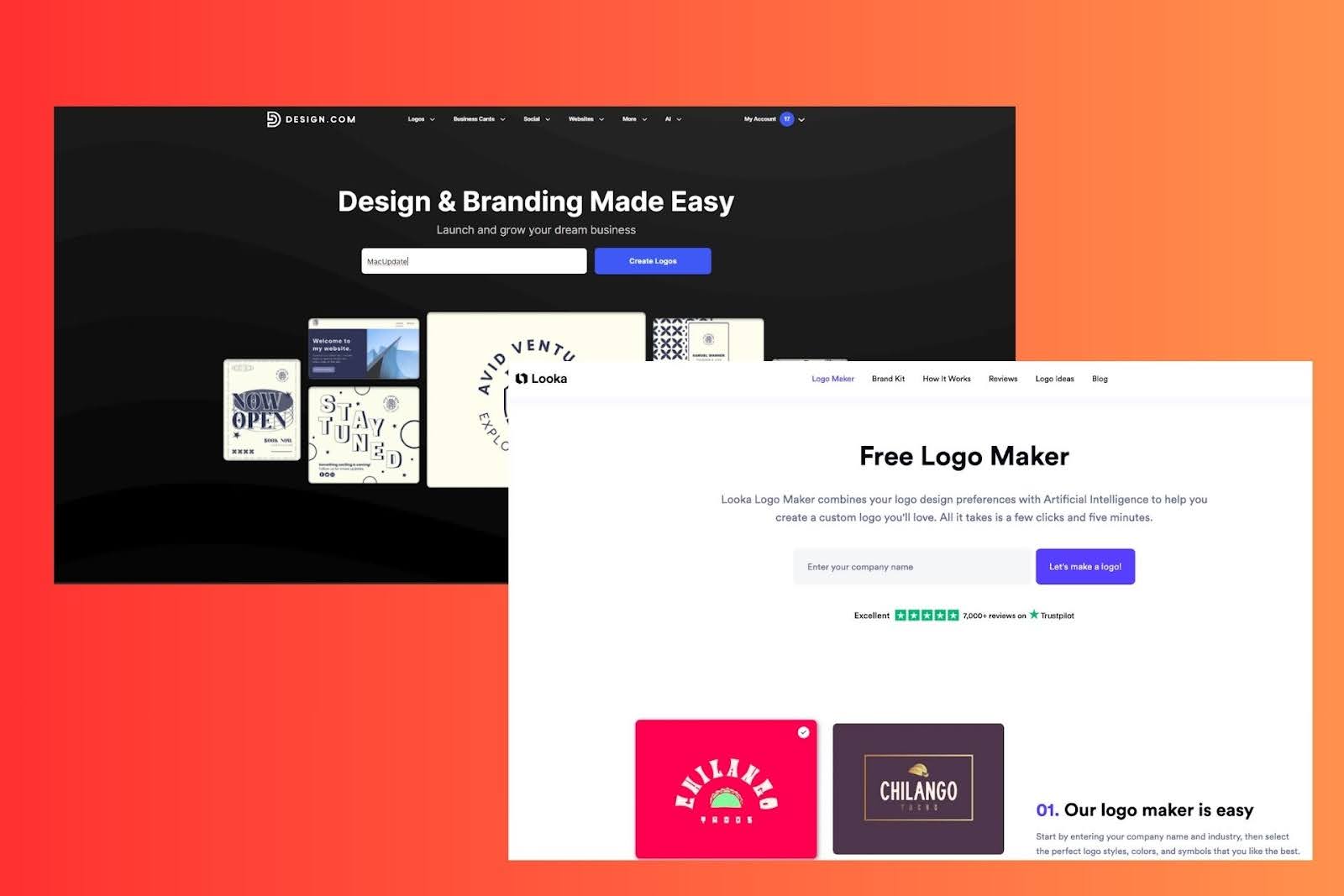
Design.com’s logo maker jumps straight into logo layouts after you enter your business name. Instead of isolating icons and text fragments, it presents finished logo compositions from the start. This matters on macOS because browsing real designs helps non-designers identify directions quickly, without guessing how elements fit together.
The interface loads quickly in both Safari and Chrome, and the initial selection often includes styles that are usable immediately or easily customizable.
DesignEvo
DesignEvo starts by asking you to pick a logo category, which can help narrow options but introduces an extra step. After selecting a category, such as “Beauty” or “Tech,” you get a grid of templates.

Each template is fundamentally a complete logo design, but the initial pool feels more templated and less diverse than what Design.com offers.

Performance is solid in both Safari and Chrome, though some pages take a bit longer to load when browsing large template libraries.
In practice: Design.com feels more like a responsive AI-enabled engine, while DesignEvo feels more like browsing a massive catalog.
Customization and editing experience
Design.com

Design.com’s customization workflow emphasizes structure. After choosing a logo, you can:
- Swap fonts from a 750+ font library (including 525+ exclusive fonts)
- Adjust brand colors globally or per element
- Change layout orientation without breaking spacing
- Refine spacing and proportions in the advanced editor
This editing feels safe and controlled. Changes are reflected instantly, and layout balance is maintained automatically.
DesignEvo

DesignEvo’s editor offers:
- Template blocks you can edit
- Basic text, font, color, and icon changes
- Layered element adjustments
It does not enforce structural safety during edits. This means you have full freedom, but also full responsibility: moving or resizing elements can easily break balance.
In practice: Design.com’s guided editing helps beginners avoid common mistakes, while DesignEvo gives more freedom but demands more manual judgment.
Logo quality and scalability
Design.com
Design.com’s logos tend to:
- Scale cleanly from website headers to print labels
- Preserve clarity at small sizes (like social avatars or browser tabs)
- Remain balanced even after customization
Vector exports (SVG, EPS, PDF) behave predictably across use cases, and raster formats (PNG, JPG) work well for digital projects.
DesignEvo
DesignEvo produces competent logos, especially from organized templates. However:
- Some designs feel generic or overly templated
- Fine details in icons can blur at small sizes
- Manual resizing sometimes requires rebalancing
Export options include SVG and PNG, but users often find themselves adjusting separate versions for small-scale use.
In practice: Design.com’s structured outputs feel more consistent, while DesignEvo’s strengths show most when users are comfortable with manual refinement.
Real-world comparison: Boutique apparel example
To compare results, I tested both tools using the same brand:
Industry: Boutique apparel
Brand name: Aurora Threads
Design.com

Design.com returned multiple wordmark and emblem layouts that worked well for lifestyle branding. After filtering on elegant and classic styles, I found several starting points that needed only minor color and font refinement. When scaled down for social avatars, the logos stayed crisp and readable.
SVG exports scaled perfectly for mockups of tags and packaging.
DesignEvo

DesignEvo’s initial templates included some visually interesting options, but several relied on decorative icons that lost clarity at small sizes. Manual spacing and layout adjustments helped, but doing so required careful alignment work.
SVG exports were usable, but required more manual cleanup for small-size applications.
In practice: Design.com provided consistent base designs that scaled without extensive tweaks, while DesignEvo demanded more hands-on adjustment to reach the same level of polish.
Export options and workflow on macOS
Design.com

Design.com supports:
- Vector files: SVG, EPS, PDF
- Raster files: PNG, JPG
- Animated formats: GIF, MP4
- Transparent and icon-only exports
These options make it easy to use your logo across presentations, websites, social profiles, and printed materials without jumping between tools.
DesignEvo

DesignEvo supports:
- Vector export (SVG)
- Raster export (PNG, JPG)
While these cover most common needs, the workflow often requires separate adjustments for small vs large uses.
In practice: Design.com’s broader export set adds value for Mac users who work across formats regularly.
Browser performance and stability
On both Safari and Chrome:
- Design.com stays responsive when loading large result sets and during editing.
- DesignEvo is stable but can lag briefly when switching between categories or browsing extensive template libraries.
Daily use felt smoother on Design.com, especially when toggling filters or making iterative edits.
Pricing and value

Design.com
Design.com includes:
- Free logos
- Free website builder with branding
- Free link-in-bio and digital business card tools (with branding visible)
Paid plans unlock high-res and vector exports, unlimited edits, and full branding tools for $5/month billed annually.
DesignEvo

DesignEvo offers:
- Free plan (basic downloads with limits)
- Paid one-time plans typically around $24.99–$49.99 for full logo access
DesignEvo’s one-time pricing can be attractive for occasional use, but lacks the ongoing asset support provided by Design.com.
Verdict: Which logo maker works best on macOS?
Design.com suits Mac creators who want:
- Strong logo foundations with minimal guesswork
- Logos that scale across all real-world use cases
- Exports that adapt to web, print, and motion formats
- Guidance that protects layout integrity for beginners
DesignEvo suits users who want:
- Simple access to many templates
- Manual editing freedom
- One-time pricing for occasional projects
For creators focused on consistency, scalability, and long-term reuse, especially in Safari and Chrome, Design.com offers a more complete and dependable experience. DesignEvo provides accessible templates, but often requires more hands-on adjustment to reach the same level of polish.

Digital Content Specialist
Nick deCourville is a Digital Content Specialist dedicated to the Apple ecosystem. He believes that fixing something can be just as straightforward as breaking it, which fuels his exploration of iPhone and iOS settings. As the owner of an iPhone 15 Pro, Apple Watch SE, and MacBook Pro, Nick is constantly honing his expertise in Apple’s products. With a Master’s degree in English Literature and Composition from The University of Akron, he has a strong foundation in writing and communication.