


Free
Absolutely Free
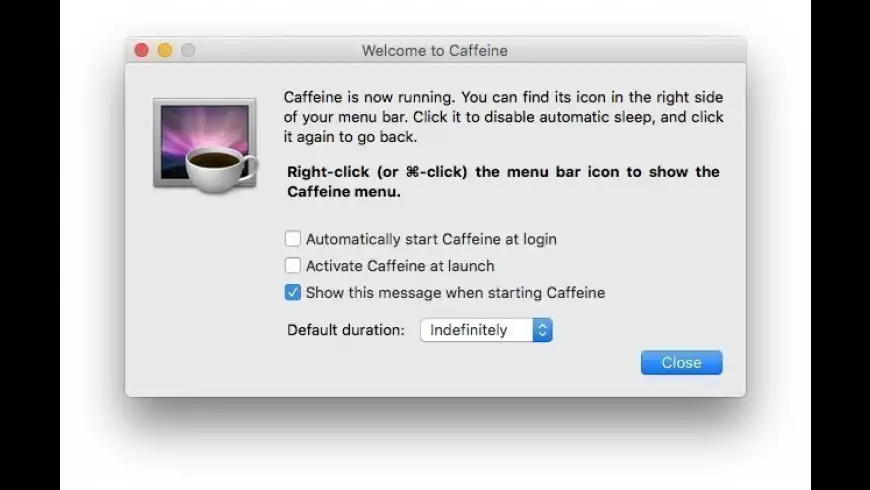
Caffeine overview
Caffeine is a tiny program that puts an icon in the right side of your menubar. Click it to prevent your Mac from automatically going to sleep, dimming the screen or starting screen savers. Click it again to go back. Hold down the Command key while clicking to show the menu.
The menu now has a sub-menu for deactivating Caffeine automatically after a number of minutes.
What’s new in version 1.1.3
Updated on Aug 07 2020
Version 1.1.3:
New:
- Support for macOS Mojave, Catalina (including Dark Mode)
- Release is now Notarized by Apple.
- Hardened Runtime enabled for security.
- Updated menu bar icons to improve appearance on Retina displays.
- Improved experience when prompting for accessibility permissions.
- Added Help & Feedback area to enhance user support.
Fixed:
- Icon occasionally remains highlighted after closing menu on macOS Sierra and later.
Information
License
Free
Size
1 MB
Developer’s website
https://www.intelliscapesolutions.com/apps/caffeineDownloads
311185
App requirements
- Intel 64
- OS X 10.10 or later
Try our new feature and write a detailed review about Caffeine. All reviews will be posted soon.
What customer like
User Experience
Price
Value
What needs improvements
Bug fixing
(0 Reviews of )
There are no reviews yet
Comments
User Ratings

Apr 25 2023
Version: 1.1.3
Why does this app ping https://analytics.intelliscapesolutions.com every 2 minutes?

Apr 11 2023
Version: 1.1.3
It was a great, very simple app but its development was abandoned in 2021 and it does not support dark mode, rendering the menu bar icon invisible in that case. It's sorely in need of an update.
Nov 7 2021
Version: 1.1.3
didn't work for me on os 12, mac still went to sleep.
solved with a very similar app available on mac app store "Owly"
Apr 13 2021
Version: 1.1.3
Didn't work. Mac slept right away with this app on.
Jan 27 2021
Version: 1.1.3
This is awesome. You know why? I can sleep now and my Teams app still will show my status as "active".

Sep 7 2020
Version: 1.1.3
I've used a couple of these "no sleep" apps and found Caffeine to be simple and effective with minimum setting !

Sep 6 2020
Version: 1.1.3
I can download anything and go to sleep whilst my computer is working and in the morning all is done. Thanks


Aug 7 2020
Version: 1.1.3
The typical situation when I need Caffeine is when practicing a song, reading lyrics on the screen. Well, I generally forget to launch it the first time, though... :-D
May 26 2020
Version: 1.1.2
Love it.... I can work on multiple PCs and not worry about one of them going on hybernation and needing to log in again!
Jan 4 2020
Version: 1.1.2
I’ve been using this app forever, and so happy it still works. Thank you to the makers and developers!
Aug 21 2019
Version: 1.1.1
Still run fine with Mojave (exept a very little aesthetic detail with the menu bar icon) ; the lightweight caffeinate app : 261 KB !
Amazing !
Thanx 2 dev
Aug 12 2017
Version: 1.1.1
Just discovered that this function is built in! Just type 'caffeinate' into a terminal window. Add “-t xx” to specify duration in seconds. So -t 3600 for an hour.
Aug 11 2015
Version: 1.1.1
It just does what it supposed to do.
One of the first apps I always install on new Macs.
But currently, on Yosemite, it keeps "selected" after a click to make it Active.

Aug 9 2015
Version: 1.1.1
I tried the following programs Amphetamine, Caffiene. Anti Sleep. I like Anti Sleep best, especially for the new MacBooks with Haswell chips that no longer have a 'Never Sleep' option under Power Preferences. Here's what I like in Anti Sleep:
1) has a auto launch/auto activate on system startup option, great for remote systems, like a laptop, that need to be always on for access. No human needed to activate.
2) Has options to only activate when powered by AC, versus battery, or both. Again, great for laptops.
3) Display sleep can be set separately from machine sleep.
I provide remote assistance to family. When they need me to look at something on their system, I just need to tell them turn on the laptop, plug it in, leave the lid up. They don't even need 'activate' since it is set to auto launch and activate if AC power is on. I can then log in anytime thereafter, even late night. I set options auto launch/activate at startup, activate only when AC is on, and stay awake indefinitely.
1) has a auto launch/auto activate on system startup option, great for remote systems, like a laptop, that need to be always on for access. No human needed to activate.
2) Has options to only activate when powered by AC, versus battery, or both. Again, great for laptops.
3) Display sleep can be set separately from machine sleep.
I provide remote assistance to family. When they need me to look at something on their system, I just need to tell them turn on the laptop, plug it in, leave the lid up. They don't even need 'activate' since it is set to auto launch and activate if AC power is on. I can then log in anytime thereafter, even late night. I set options auto launch/activate at startup, activate only when AC is on, and stay awake indefinitely.
Jan 18 2015
Version: 1.1.1
After the apparent abandonment of Caffeine by its developer and its not support the retinas screens and Dark mode on Yosemite, I decided to look for a replacement the height! I found the incredible Wimoweh also that works perfectly and has several more options including: not let Mac sleep but allow the monitor to sleep. Found it amazing! S2
Nov 12 2014
Version: 1.1.1
I love this app...but it needs to be updated for Yosemite. Sometimes the menu icon blacks out and the only way to fix it is to exit/relaunch.
Mar 28 2014
Version: 1.1.1
Works, do what it is intend to, simple, efficient. What else?
Jun 9 2013
Version: 1.1.1
Is there a way to suppress the preferences window at launch? It's a bit of an annoyance to have to manually close the prefs window every time the app launches--they can be accessed via right clicking the menu bar icon, so I see no reason we should be faced with the prefs every time the app starts. Is there a way to change this that I'm missing?


Free
Absolutely Free

Similar apps
Lungo
Prevent your Mac from sleeping.
Is this app is similar to Lungo? Vote to improve the quality of this list.
Vote results
3
Upvotes
3
Total score
0
Downvotes
Amphetamine
Override energy saver settings and keep your Mac awake.
Is this app is similar to Amphetamine? Vote to improve the quality of this list.
Vote results
5
Upvotes
2
Total score
-3
Downvotes
Sleep No More
Prevent your Mac from sleeping for a set amount of time.
Is this app is similar to Sleep No More? Vote to improve the quality of this list.
Vote results
0
Upvotes
1
Total score
0
Downvotes
Coffee Buzz
Safely Prevent Sleep.
Is this app is similar to Coffee Buzz? Vote to improve the quality of this list.
Vote results
1
Upvotes
1
Total score
0
Downvotes
KeepingYouAwake
Prevent your Mac from going to sleep.
Is this app is similar to KeepingYouAwake? Vote to improve the quality of this list.
Vote results
1
Upvotes
1
Total score
0
Downvotes